Connecting
You don't set anything up. Caland finds the workspaces it can reach, and when there is no doubt which one you mean it goes straight there: the workspace of a bundle in the current folder, or your only profile. Otherwise the page asks.
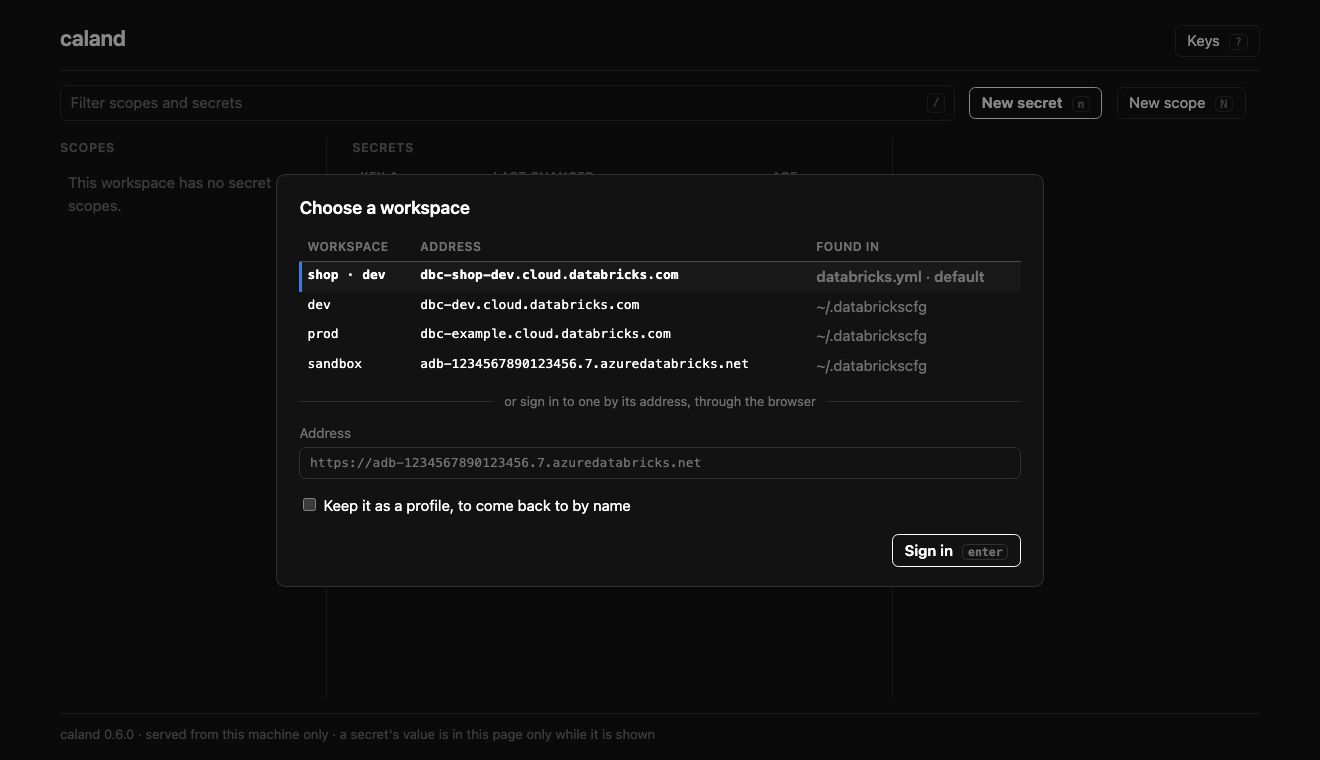
Every row says where it was found. Up Down or J K pick, Enter goes there. A profile connects at once; a bundle's workspace, or an address, signs you in through the browser. No token is asked for.
To go straight to one, name it:
caland prod               # a profile, or a bundle's target
caland --profile prod     # the same
caland prod --read-only   # and change nothing there
A name that is not there is said, with the names that are, and nothing starts.
On the page, W opens the choice again. Going to another workspace leaves nothing of the one you were in: not on the page, and not in Caland's memory.
Where workspaces are found
1. Asset bundle
If a databricks.yml (a Databricks Asset Bundle) is present in the current directory, its target workspace is offered as the pre-selected default.
Caland resolves the host as follows:
- It picks the target flagged
default: true(or the only target, if there is just one). - It falls back to the top-level
workspace.host. - Unresolved
${...}variables are skipped, falling back to the top-level host.
A minimal bundle with dev and prod targets, where prod is the default:
bundle:
  name: my-project

targets:
  dev:
    workspace:
      host: https://dev.cloud.databricks.com

  prod:
    default: true
    workspace:
      host: https://prod.cloud.databricks.com
Running inside a bundle project just works
Launch caland from a directory that contains a databricks.yml and the right workspace is already selected — just press Enter.
2. ~/.databrickscfg profiles
Every saved profile in ~/.databrickscfg is listed automatically. Saved profiles connect instantly, because authentication is already configured.
A profile is listed whatever its address: two profiles for one workspace — yours and a
service principal's, say — are two rows, and so is a profile for the workspace of the
bundle you are in. Each signs in its own way. caland NAME means the profile of that name;
the bundle's target is where Caland goes when you name nothing.
3. An address
Type a workspace's address into the field under the list and press Enter: you are
signed in through the browser. An address is https, a host, and nothing after it.
Tick keep it as a profile and give it a name to come back to it by. What is written to
~/.databrickscfg is the address and that you sign in through the browser
(auth_type = external-browser) — no token. That is a profile for tools built on the
Databricks SDK for Python, as Caland is; it is not what databricks auth login writes. The
name has to be a new one: a profile that is there keeps its own way of signing in, and
Caland will not point it at another address.
The sign-in itself is kept by the Databricks SDK, not by Caland, so that you are not asked
every time: in ~/.config/databricks-sdk-py/oauth/. Security says more.
With no profile: DATABRICKS_HOST
When ~/.databrickscfg has no profile with an address — or is not there at all — and
DATABRICKS_HOST is set, that address is offered, under the name DEFAULT. How you are
signed in there is the Databricks SDK's to work out, from what else the environment holds.
It is listed as a profile, since that is how Caland asks the SDK for it.
DATABRICKS_CONFIG_FILE names another file than ~/.databrickscfg, for Caland as for the
Databricks SDK it signs in with: profiles are read from it, and one you keep is written to
it.
When nothing is found
With no bundle here, no profile and no DATABRICKS_HOST, the list is empty and the field
for an address is all there is. Sign in to one, keep it as a profile, and the next time it is on the list.